引言:移动端测试的痛点与 Playwright 解决方案
你是否曾因以下问题困扰:
· 真机调试成本高,难以复现偶发问题
· 移动手势操作难以精准模拟,测试覆盖不全面
Playwright( playwright)作为
微软推出的
自动化测试框架,通过设备模拟、手势支持和多浏览器引擎三大核心能力,彻底改变移动端测试现状。本文将系统讲解如何利用 Playwright 实现 iOS/Android 设备的精准模拟与自动化测试,包含 15+ 实战案例、8 个核心配置项和 5 大测试场景,帮你构建稳定高效的移动端测试体系。
一、Playwright 移动端测试核心原理
1.1 设备模拟架构
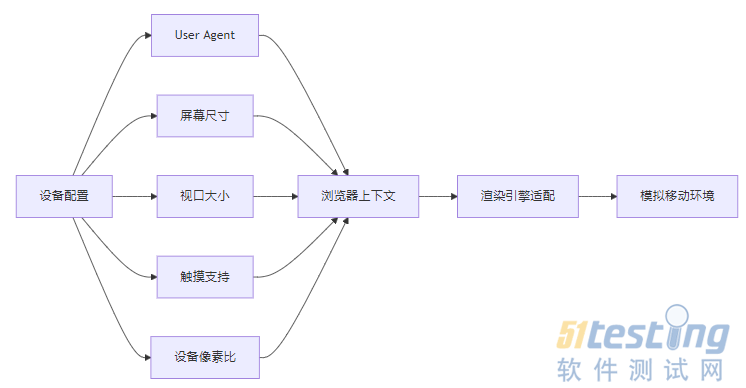
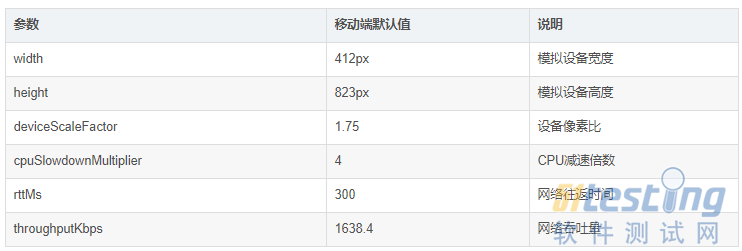
Playwright 通过浏览器上下文(BrowserContext) 实现设备模拟,核心原理是注入特定配置覆盖浏览器默认行为:
关键技术点:
非真实设备模拟:无需连接真机,通过修改浏览器内核参数实现模拟
多维度配置:涵盖从网络环境到传感器的全方位模拟
跨浏览器支持:Chromium/Firefox/WebKit 三大引擎全覆盖
1.2 支持的移动设备清单
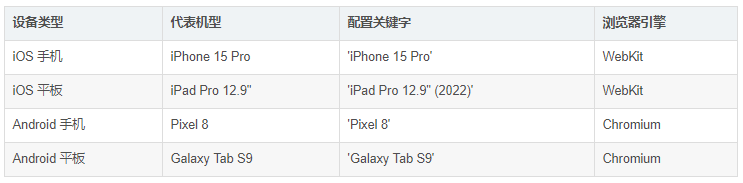
Playwright 内置 80+ 种预设设备配置,包含主流 iOS/Android 机型:
完整设备清单可通过以下代码获取:
const { devices } = require('@playwright/test');
console.log(Object.keys(devices).filter(name =>
name.includes('iPhone') || name.includes('iPad') ||
name.includes('Pixel') || name.includes('Galaxy')
));
二、环境搭建与基础配置
2.1 安装与初始化
前提条件:Node.js 16+、npm 8+
# 创建测试项目
mkdir playwright-mobile-test && cd playwright-mobile-test
npm init playwright@latest .
# 选择:TypeScript、Mocha、不使用 ESLint、安装依赖
2.2 核心配置文件
创建 playwright.config.ts 基础配置:
import { defineConfig, devices } from '@playwright/test';
export default defineConfig({
testDir: './tests',
timeout: 30 * 1000,
expect: { timeout: 5000 },
fullyParallel: true,
retries: 1,
workers: '100%',
reporter: 'html',
// 全局移动设备配置
use: {
actionTimeout: 0,
baseURL: 'https://m.example.com', // 移动站点基础URL
trace: 'on-first-retry', // 失败时记录追踪信息
video: 'retain-on-failure', // 失败时保留视频
},
// 多设备测试项目配置
projects: [
{
name: 'iOS',
use: {
...devices['iPhone 15 Pro'], // 继承预设配置
browserName: 'webkit', // iOS 需使用 WebKit 引擎
orientation: 'portrait', // 竖屏模式
},
},
{
name: 'Android',
use: {
...devices['Pixel 8'],
browserName: 'chromium', // Android 需使用 Chromium 引擎
orientation: 'landscape', // 横屏模式
},
},
],
});
关键配置说明:
·browserName:iOS 必须使用 WebKit,Android 必须使用 Chromium
· orientation:支持 'portrait'(竖屏)和 'landscape'(横屏)
· trace/video:移动端测试必备的调试与证据收集功能
三、基础操作:设备模拟与页面交互
3.1 全局设备配置方案
playwright.config.ts 中定义项目级设备配置(推荐用于多设备兼容性测试):
// 扩展配置:增加更多测试设备
projects: [
{
name: 'iPhone SE',
use: { ...devices['iPhone SE'], browserName: 'webkit' },
},
{
name: 'Galaxy S23',
use: { ...devices['Galaxy S23'], browserName: 'chromium' },
},
{
name: 'iPad Air',
use: { ...devices['iPad Air'], browserName: 'webkit' },
},
]
使用 test.use() 为特定测试单独配置设备:
import { test, expect } from '@playwright/test';
import { devices } from '@playwright/test';
test.describe('响应式布局测试', () => {
// 为整个测试组应用设备配置
test.use({
...devices['iPad Pro 12.9" (2022)'],
browserName: 'webkit',
});
test('平板端菜单显示测试', async ({ page }) => {
await page.goto('/');
// 验证平板特有菜单
await expect(page.locator('.tablet-menu')).toBeVisible();
});
// 覆盖单个测试的设备配置
test.use({
...devices['Pixel 7'],
browserName: 'chromium',
});
test('手机端底部导航测试', async ({ page }) => {
await page.goto('/');
await expect(page.locator('.mobile-bottom-nav')).toBeVisible();
});
});
3.3 动态修改设备参数
测试过程中动态调整设备属性:
test('动态修改视口测试', async ({ page, context }) => {
// 初始为 iPhone 15 配置
await page.goto('/product-list');
// 动态修改为 iPad 视口
await context.setViewportSize({ width: 1024, height: 1366 });
await expect(page.locator('.grid-view')).toBeVisible();
// 切换回手机视口
await context.setViewportSize({ width: 393, height: 852 });
await expect(page.locator('.list-view')).toBeVisible();
});
四、移动端特有交互操作
4.1 触摸手势基础
Playwright 提供专门的触摸操作 API,模拟真实手指行为:
import { test, expect, devices } from '@playwright/test';
test.use({ ...devices['iPhone 15 Pro'], browserName: 'webkit' });
test('触摸滑动操作测试', async ({ page }) => {
await page.goto('/carousel');
// 水平滑动轮播图
await page.locator('.carousel').swipe({
direction: 'left',
distance: 300, // 滑动距离(px)
duration: 500, // 滑动时长(ms)
});
// 验证滑动结果
await expect(page.locator('.carousel-item.active')).toHaveText('第二张图');
// 垂直滑动列表
await page.locator('.product-list').swipe({
direction: 'up',
distance: 500,
});
// 长按操作
await page.locator('.product-item').press('Shift+F10'); // 模拟长按
await expect(page.locator('.context-menu')).toBeVisible();
});
4.2 高级手势组合
复杂手势操作实现(如捏合缩放):
test('图片捏合缩放测试', async ({ page }) => {
await page.goto('/image-viewer');
// 获取图片元素
const image = page.locator('.image-container');
// 记录初始尺寸
const initialSize = await image.boundingBox();
// 捏合放大(两点触摸)
await image.touchAction([
{ type: 'pointerDown', point: { x: 100, y: 200 } }, // 第一个手指
{ type: 'pointerDown', point: { x: 200, y: 200 } }, // 第二个手指
{ type: 'pointerMove', point: { x: 50, y: 200 } }, // 第一个手指移动
{ type: 'pointerMove', point: { x: 250, y: 200 } }, // 第二个手指移动
{ type: 'pointerUp' },
{ type: 'pointerUp' },
]);
// 验证放大效果
const scaledSize = await image.boundingBox();
expect(scaledSize.width).toBeGreaterThan(initialSize.width * 1.5);
});
4.3 虚拟键盘操作
处理移动端软键盘交互:
test('登录表单键盘测试', async ({ page }) => {
await page.goto('/login');
// 输入用户名(触发数字键盘)
await page.locator('#username').fill('testuser');
// 输入密码(验证密码可见性切换)
await page.locator('#password').fill('secret');
await page.locator('.toggle-password').click();
await expect(page.locator('#password')).toHaveAttribute('type', 'text');
// 键盘提交
await page.keyboard.press('Enter'); // 模拟键盘完成键
// 验证登录成功
await expect(page).toHaveURL('/dashboard');
});
五、兼容性测试策略
5.1 多设备并行测试
配置文件优化实现全设备覆盖:
// playwright.config.ts 扩展配置
projects: [
{
name: 'iOS-iPhone',
use: { ...devices['iPhone 15 Pro'], browserName: 'webkit' },
},
{
name: 'iOS-iPad',
use: { ...devices['iPad Pro 12.9"'], browserName: 'webkit', orientation: 'landscape' },
},
{
name: 'Android-Pixel',
use: { ...devices['Pixel 8'], browserName: 'chromium' },
},
{
name: 'Android-Galaxy',
use: { ...devices['Galaxy S23 Ultra'], browserName: 'chromium' },
},
]
运行命令:
npx playwright test --project=iOS-iPhone,iOS-iPad,Android-Pixel,Android-Galaxy
5.2 分辨率适配测试
动态调整视口验证响应式布局:
test.describe.configure({ retries: 0 }); // 禁用重试提高效率
const viewports = [
{ width: 320, height: 568 }, // 小屏手机
{ width: 393, height: 852 }, // 标准手机
{ width: 820, height: 1180 }, // 平板竖屏
{ width: 1180, height: 820 }, // 平板横屏
];
for (const viewport of viewports) {
test(`分辨率适配测试: ${viewport.width}x${viewport.height}`, async ({ page, context }) => {
// 设置视口
await context.setViewportSize(viewport);
await page.goto('/');
// 验证关键元素布局
if (viewport.width < 768) {
// 移动端布局
await expect(page.locator('.mobile-header')).toBeVisible();
await expect(page.locator('.desktop-nav')).toBeHidden();
} else {
// 平板布局
await expect(page.locator('.mobile-header')).toBeHidden();
await expect(page.locator('.tablet-nav')).toBeVisible();
}
});
}
5.3 网络环境模拟
不同网络条件下的应用表现测试:
test.describe('网络环境测试', () => {
test.use({ ...devices['iPhone 15 Pro'], browserName: 'webkit' });
test('弱网环境加载测试', async ({ page, context }) => {
// 设置弱网条件(3G网络)
await context.route('**/*', route => {
// 延迟 1500ms,下载速度 500kbps,上传速度 250kbps
setTimeout(() => route.continue(), 1500);
});
const startTime = Date.now();
await page.goto('/');
// 验证加载状态
await expect(page.locator('.loading-spinner')).toBeVisible();
await expect(page.locator('.content')).toBeVisible();
// 验证加载时间(弱网应显示加载动画)
const loadTime = Date.now() - startTime;
expect(loadTime).toBeGreaterThan(1000);
expect(loadTime).toBeLessThan(10000);
});
test('离线模式测试', async ({ page, context }) => {
// 设置离线模式
await context.setOffline(true);
await page.goto('/');
// 验证离线提示
await expect(page.locator('.offline-message')).toBeVisible();
await expect(page.locator('.offline-message')).toContainText('无网络连接');
// 恢复网络
await context.setOffline(false);
await page.reload();
await expect(page.locator('.content')).toBeVisible();
});
});
六、特殊场景测试方案
6.1 地理定位模拟
移动端地图应用测试:
test('地图定位测试', async ({ page, context }) => {
// 授予定位权限
await context.grantPermissions(['geolocation']);
// 设置初始位置(北京)
await context.setGeolocation({ longitude: 116.4042, latitude: 39.9153 });
await page.goto('/map');
// 验证初始位置
await expect(page.locator('.location-name')).toHaveText('北京市');
// 模拟位置移动(上海)
await context.setGeolocation({ longitude: 121.4737, latitude: 31.2304 });
// 触发位置更新
await page.locator('.refresh-location').click();
// 验证位置更新
await expect(page.locator('.location-name')).toHaveText('上海市');
await expect(page.locator('.distance')).toContainText('1318公里');
});
6.2 权限管理测试
移动应用权限请求处理:
test('通知权限测试', async ({ page, context }) => {
await page.goto('/notification-settings');
// 检查初始权限状态
await expect(page.locator('.permission-status')).toHaveText('未请求');
// 请求通知权限
await page.locator('.request-permission').click();
// 处理权限对话框(WebKit特有的对话框处理)
page.on('dialog', async dialog => {
if (dialog.message().includes('想要发送通知')) {
await dialog.accept(); // 允许权限
}
});
// 验证权限已授予
await expect(page.locator('.permission-status')).toHaveText('已允许');
// 发送测试通知
await page.locator('.send-test-notification').click();
// 验证通知显示
await expect(page.locator('.notification')).toBeVisible();
await expect(page.locator('.notification')).toHaveText('测试通知');
});
6.3 安装横幅测试(PWA)
test('PWA安装横幅测试', async ({ page, context }) => {
// 设置PWA相关权限
await context.grantPermissions(['clipboard-read', 'clipboard-write']);
// 模拟满足安装条件(访问3次以上)
for (let i = 0; i < 3; i++) {
await page.goto('/');
await page.waitForTimeout(1000);
}
// 处理安装横幅(WebKit)
if (page.context().browser().browserType().name() === 'webkit') {
page.on('dialog', async dialog => {
if (dialog.message().includes('添加到主屏幕')) {
await dialog.accept();
}
});
} else {
// 处理Chromium安装提示
const installButton = page.locator('.install-button');
if (await installButton.isVisible()) {
await installButton.click();
}
}
// 验证安装成功
await expect(page.locator('.installation-success')).toBeVisible();
});
七、测试报告与调试技巧
7.1 增强型测试报告
配置详细测试报告:
// playwright.config.ts
export default defineConfig({
reporter: [
['html', { open: 'never', outputFolder: 'mobile-test-report' }],
['json', { outputFile: 'mobile-test-results.json' }],
],
use: {
trace: 'retain-on-failure', // 保留失败用例追踪
video: 'retain-on-failure', // 保留失败用例视频
screenshot: 'only-on-failure', // 失败时截图
},
});
生成报告命令:
npx playwright test && npx playwright show-report mobile-test-report
7.2 移动调试工具
利用 Playwright 特有的 UI 模式调试:
npx playwright test --ui --project=iOS
调试技巧:
·使用 时间线滑块 精确回放测试步骤
· 通过 元素选择器 实时验证移动端元素状态
· 利用 属性检查器 查看触摸事件绑定
· 导出 HAR 文件 分析移动端网络请求
7.3 常见问题排查
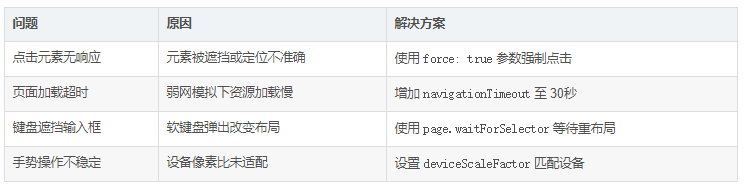
移动端测试问题解决方案:
示例:解决点击问题
// 不稳定元素点击方案
await page.locator('.submit-button').click({
force: true, // 忽略可操作性检查
position: { x: 10, y: 10 }, // 指定点击位置(避开边缘)
delay: 100, // 模拟真实点击延迟
});
八、性能优化与最佳实践
8.1 测试效率提升
多维度优化测试执行速度:
// playwright.config.ts
export default defineConfig({
fullyParallel: true, // 并行执行测试
workers: '50%', // 限制工作进程数(避免资源竞争)
use: {
actionTimeout: 15000, // 操作超时
navigationTimeout: 30000, // 导航超时
},
// 按设备类型分组测试
testDir: './tests',
testMatch: /.*\.mobile\.spec\.ts/, // 仅执行移动端测试文件
});
8.2 页面对象模型(POM)设计
移动端测试代码组织:
// models/HomePage.ts
import { Page, Locator } from '@playwright/test';
export class HomePage {
private readonly carousel: Locator;
private readonly productList: Locator;
private readonly searchButton: Locator;
constructor(page: Page) {
this.carousel = page.locator('.carousel');
this.productList = page.locator('.product-list');
this.searchButton = page.locator('.search-button');
}
async swipeCarousel(direction: 'left' | 'right') {
await this.carousel.swipe({ direction, distance: 300 });
}
async scrollToProduct(index: number) {
const item = this.productList.locator(`.product-item >> nth=${index}`);
await item.scrollIntoViewIfNeeded();
return item;
}
async search(keyword: string) {
await this.searchButton.click();
const input = page.locator('.search-input');
await input.fill(keyword);
await input.press('Enter');
}
}
使用 POM 的测试用例:
import { test, expect } from '@playwright/test';
import { HomePage } from '../models/HomePage';
test('首页功能测试', async ({ page }) => {
const homePage = new HomePage(page);
await page.goto('/');
// 轮播图操作
await homePage.swipeCarousel('left');
await homePage.swipeCarousel('left');
// 产品列表操作
const thirdProduct = await homePage.scrollToProduct(2);
await thirdProduct.click();
// 验证跳转
await expect(page).toHaveURL(/product\/\d+/);
});
8.3 CI/CD 集成方案
GitHub Actions 配置示例:
# .github/workflows/mobile-test.yml
name: Mobile Tests
on: [push, pull_request]
jobs:
test:
runs-on: ubuntu-latest
steps:
- uses: actions/checkout@v4
- uses: actions/setup-node@v4
with:
node-version: 20
- name: Install dependencies
run: npm ci
- name: Install browsers
run: npx playwright install --with-deps webkit chromium
- name: Run mobile tests
run: npx playwright test --project=iOS,Android
- name: Upload report
uses: actions/upload-artifact@v4
if: always()
with:
name: mobile-test-report
path: mobile-test-report/
九、总结与展望
Playwright 移动端测试核心优势总结:
1. 全平台覆盖:一套 API 实现 iOS/Android 双平台测试
2. 高精度模拟:从设备参数到传感器的全方位模拟
3. 丰富交互支持:覆盖从基础点击到复杂手势的所有操作
4. 完善的调试体系:视频录制、性能追踪、元素定位可视化
通过本文介绍的方法,你已掌握 Playwright 移动端测试的核心技术。建议从基础设备模拟开始实践,逐步引入复杂手势和场景测试,最终构建完整的移动端测试体系。记住,移动测试的关键在于模拟真实用户环境并覆盖各种边缘场景,Playwright 正是为此提供了强大而灵活的工具集。
本文内容不用于商业目的,如涉及知识产权问题,请权利人联系51Testing小编(021-64471599-8017),我们将立即处理