痛点与解决方案
你是否曾遇到开发的
Web工具在桌面端表现完美,却在移动端出现布局错乱、功能失效的问题?作为面向开发者的多功能在线工具集(omni-tools),其流畅的用户体验(UX)承诺必须在各种设备上得到保证。本文将详细介绍如何使用Playwright实现omni-tools的自动化跨设备
测试,确保从
手机到桌面的一致体验。
读完本文你将学到:
·配置Playwright实现移动端场景测试
· 编写覆盖11类核心工具的设备兼容性测试
· 集成CI流程实现自动化跨设备验证
· 解决常见的移动端适配问题
测试环境配置
Playwright基础配置
omni-tools项目已集成Playwright测试框架,核心配置文件playwright.config.ts定义了测试基础环境:
import { defineConfig, devices } from '@playwright/test';
export default defineConfig({
testDir: './src', // 测试文件目录
testMatch: /\.e2e\.(spec\.)?ts$/, // 测试文件匹配模式
fullyParallel: true, // 并行执行测试
retries: 1, // 失败重试次数
reporter: [['html', { open: 'never' }]], // 测试报告生成
use: {
baseURL: 'http://localhost:4173', // 测试基准URL
trace: 'on-first-retry' // 失败时记录追踪信息
},
webServer: {
command: 'npm run build && npm run serve', // 启动测试服务器
url: 'http://localhost:4173' // 服务器URL
},
projects: [
{ name: 'chromium', use: { ...devices['Desktop Chrome'] } },
{ name: 'firefox', use: { ...devices['Desktop Firefox'] } },
{ name: 'webkit', use: { ...devices['Desktop Safari'] } }
]
});
当前配置仅包含桌面浏览器,需要添加移动端设备配置。以下是扩展后的设备配置:
projects: [
// 桌面浏览器配置(已存在)
{ name: 'chromium', use: { ...devices['Desktop Chrome'] } },
{ name: 'firefox', use: { ...devices['Desktop Firefox'] } },
{ name: 'webkit', use: { ...devices['Desktop Safari'] } },
// 新增移动端配置
{ name: 'Mobile Chrome', use: { ...devices['Pixel 7'] } },
{ name: 'Mobile Safari', use: { ...devices['iPhone 14'] } },
{ name: 'Tablet Safari', use: { ...devices['iPad Mini'] } }
]
Playwright提供了丰富的预定义设备配置,包括各种手机、平板型号,完整列表可通过npx playwright show-report命令查看。
核心测试场景设计
测试覆盖范围
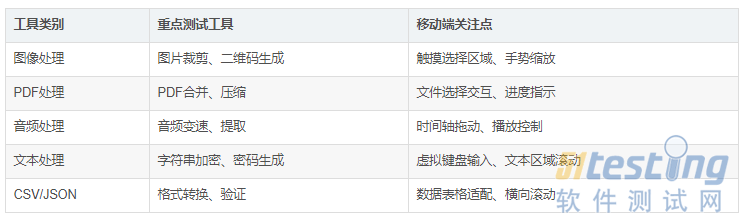
omni-tools包含11个大类工具,每个类别下有多个子工具,移动端测试需重点关注以下交互密集型工具:
创建src/pages/tools/image/generic/qr-code/qr-code.e2e.spec.ts测试文件:
import { test, expect } from '@playwright/test';
test.describe('QR Code Generator (Mobile)', () => {
test.use({
viewport: { width: 393, height: 851 }, // Pixel 7尺寸
deviceScaleFactor: 3
});
test.beforeEach(async ({ page }) => {
await page.goto('/tools/image/generic/qr-code');
await expect(page.locator('h1')).toContainText('QR Code Generator');
});
test('should generate QR code on mobile input', async ({ page }) => {
// 输入测试内容
await page.locator('textarea[name="content"]').fill('https://omni-tools.app');
// 选择二维码尺寸(移动端下拉菜单交互)
await page.locator('select[name="size"]').selectOption('256');
// 点击生成按钮(可能在屏幕底部)
await page.locator('button[type="submit"]').click();
// 验证结果
await expect(page.locator('img[alt="QR Code"]')).toBeVisible();
await expect(page.locator('.result-download-btn')).toBeVisible();
});
test('should handle orientation change', async ({ page }) => {
// 测试横屏模式
page.setViewportSize({ width: 851, height: 393 });
await expect(page.locator('form')).toBeVisible();
await expect(page.locator('form')).not.toHaveCSS('overflow-x', 'scroll');
});
});
跨设备测试策略
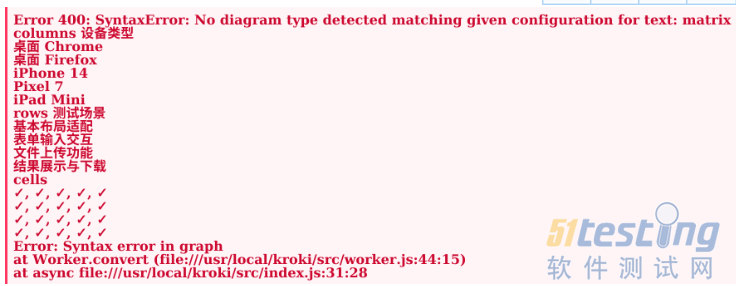
采用矩阵测试策略覆盖核心设备组合:
测试命令配置
在package.json中添加测试脚本:
{
"scripts": {
"test": "vitest run",
"test:watch": "vitest",
"test:e2e": "playwright test",
"test:e2e:mobile": "playwright test --project=Mobile\\ Chrome --project=Mobile\\ Safari",
"test:e2e:report": "playwright show-report"
}
}
CI/CD集成示例(GitHub Actions)
创建.github/workflows/e2e-mobile.yml:
name: Mobile E2E Tests
on: [push, pull_request]
jobs:
test:
runs-on: ubuntu-latest
steps:
- uses: actions/checkout@v4
- uses: actions/setup-node@v4
with: { node-version: 20 }
- run: npm ci
- run: npm run build
- name: Install Playwright Browsers
run: npx playwright install --with-deps
- name: Run Mobile Tests
run: npm run test:e2e:mobile
- uses: actions/upload-artifact@v3
if: always()
with:
name: playwright-report
path: playwright-report/
常见移动端问题及解决方案
1. 触摸目标太小
问题:按钮或链接尺寸小于44x44px,不符合WCAG标准。
解决方案:使用Playwright断言检测并修复:
test('all interactive elements meet touch target size', async ({ page }) => {
const elements = page.locator('button, a, [role="button"]');
const count = await elements.count();
for (let i = 0; i < count; i++) {
const element = elements.nth(i);
const boundingBox = await element.boundingBox();
expect(boundingBox?.width).toBeGreaterThanOrEqual(44);
expect(boundingBox?.height).toBeGreaterThanOrEqual(44);
}
});
2. 横向溢出
问题:内容在移动设备上横向滚动。
解决方案:添加视口元标签(已在index.html中):
<div> <meta name="viewport" content="width=device-width, initial-scale=1.0"></div><div> html</div>
并在测试中验证:
test('no horizontal overflow on mobile', async ({ page }) => {
const viewportWidth = page.viewportSize()?.width;
const bodyWidth = await page.evaluate(() => document.body.scrollWidth);
expect(bodyWidth).toBeLessThanOrEqual(viewportWidth);
});
3. 文件上传兼容性
问题:不同移动设备对文件上传的支持差异。
解决方案:为不同设备类型编写特定测试:
test('file upload works on mobile', async ({ page, browserName }) => {
const fileInput = page.locator('input[type="file"]');
if (browserName === 'webkit') {
// Safari特定处理
await expect(fileInput).toHaveAttribute('accept', 'image/*');
} else {
// Chrome等其他浏览器
await expect(fileInput).toHaveAttribute('accept', '*/*');
}
// 模拟文件上传
await fileInput.setInputFiles({
name: 'test-image.png',
mimeType: 'image/png',
buffer: Buffer.from('...')
});
await expect(page.locator('.file-name')).toContainText('test-image.png');
});
测试报告与分析
Playwright生成详细的HTML测试报告,包含:
·测试执行时间线
· 失败截图和视频录制
· 性能指标
· 设备兼容性矩阵
通过以下命令查看报告:
典型的移动端测试报告摘要:
测试结果摘要
- 总测试数: 48
- 通过: 45
- 失败: 3
- 跳过: 0
- 通过率: 93.75%
失败点分析
1. PDF压缩工具在iPad横屏模式下按钮错位
2. 音频变速工具在iOS Safari中进度条拖动无响应
3. 长文本输入时虚拟键盘遮挡提交按钮
最佳实践与优化建议
测试性能优化
测试隔离:每个测试用例使用独立的页面上下文
并行执行:利用Playwright的fullyParallel: true配置
选择性测试:使用test.only和test.skip控制测试范围
截图比较:使用视觉对比测试检测UI变化
test('visual regression test', async ({ page }) => {
await page.goto('/tools/string/password-generator');
expect(await page.screenshot()).toMatchSnapshot('password-generator-mobile.png');
});
触摸手势:测试滑动、缩放等手势操作
test('swipe to reveal more options', async ({ page }) => {
await page.goto('/tools/pdf/merge-pdf');
// 模拟移动端滑动
await page.locator('.options-panel').swipe({ direction: 'left', distance: 200 });
await expect(page.locator('.advanced-options')).toBeVisible();
});
暗黑模式:测试系统主题切换
test('respects dark mode on mobile', async ({ page }) => {
await page.emulateMedia({ colorScheme: 'dark' });
await page.goto('/');
await expect(page.locator('body')).toHaveCSS('background-color', '#1a1a1a');
});
总结与展望
通过Playwright实现的移动端测试策略为omni-tools提供了全面的设备兼容性保障。本文介绍的测试配置、
用例设计和自动化集成方法,可确保工具在各种设备上提供一致的优质体验。
未来测试计划:
1. 扩展对折叠屏设备的测试覆盖
2. 集成真实设备测试(通过BrowserStack等服务)
3. 增加
性能测试指标(首次内容绘制、交互响应时间)
4. 实现测试覆盖率可视化
通过持续完善测试策略,omni-tools将继续保持其"出色用户体验"的核心优势,为开发者提供真正跨平台的在线工具集。
本文内容不用于商业目的,如涉及知识产权问题,请权利人联系51Testing小编(021-64471599-8017),我们将立即处理
本文链接:https://www.bdoc.cn/post/21.html
版权声明:本文内容不用于商业目的,如涉及知识产权问题,请权利人联系小编QQ或者微信:799549349,我们将立即处理